
Yes, you can record vocals on FL Studio Fruity Edition. It requires some additional steps but it’s possible.
FL Studio Fruity Edition is popular for its powerful features. It’s a favorite among music producers. Many wonder if it can handle vocal recordings. The short answer is yes. Fruity Edition doesn’t include audio recording features by default. Yet, you can use workarounds to record vocals.
This post will explore those methods. You’ll learn how to use third-party plugins and tools. By the end, you’ll know how to record vocals on Fruity Edition. Stay tuned to discover the steps and tools needed. Let’s dive in!
Introduction To FL Studio Fruity Edition
FL Studio Fruity Edition is a popular software for music production. It offers a range of features for beginners and professionals. With this software, users can create, edit, and mix music tracks.
Features And Capabilities
FL Studio Fruity Edition comes packed with various tools and functions. Here are some key features:
- Playlist: Arrange your music with the intuitive playlist feature.
- Piano Roll: Create melodies and harmonies with ease using the piano roll.
- Step Sequencer: Build drum patterns and basslines with the step sequencer.
- VST Plugins: Enhance your tracks with a variety of built-in plugins.
- MIDI Support: Connect MIDI devices to control your music production.
These features make FL Studio Fruity Edition a powerful tool for music creation.
Limitations
While FL Studio Fruity Edition is robust, it has some limitations:
- No Audio Recording: This edition does not support direct audio recording. You need an upgrade for recording vocals.
- Limited Mixer Tracks: The number of mixer tracks is fewer compared to higher editions.
- Fewer Effects: There are fewer effects and filters available.
Despite these limitations, FL Studio Fruity Edition remains a popular choice for music producers starting their journey.
Understanding Vocal Recording
FL Studio Fruity Edition is popular for creating music. But can you record vocals with it? Let’s dive into the basics of vocal recording using this software. Understanding how to record vocals properly will enhance your music production skills.
Importance Of Quality
Quality matters in vocal recording. A clear and crisp vocal track can make a song stand out. Poor quality can ruin the listening experience. So, focus on getting the best possible sound.
Why is this important? Listeners notice the quality. They appreciate smooth, clear vocals. It helps in conveying the emotions of the song. Moreover, high-quality recordings are easier to mix and master.
| Aspect | Impact on Quality |
|---|---|
| Microphone | Captures the voice clearly |
| Room Acoustics | Reduces background noise |
| Recording Technique | Ensures consistent audio levels |
Basic Requirements
Recording vocals requires some basic equipment and setup. Here are the essentials:
- Microphone: A good quality microphone is key. Condenser microphones are preferred for vocals.
- Audio Interface: Connects the microphone to your computer. It ensures better sound quality.
- Headphones: Use closed-back headphones to prevent sound leakage.
- Pop Filter: Reduces plosive sounds like “p” and “b”.
- Quiet Room: Minimize background noise for a clean recording.
Setting up your recording environment is also crucial. Follow these steps for the best results:
- Choose a Quiet Room: Avoid rooms with a lot of echo or noise.
- Position the Microphone: Place it at a comfortable height and distance.
- Use Acoustic Treatment: Foam panels can help reduce echoes.
- Check Levels: Ensure the input levels are not too high to avoid distortion.
Following these basic steps will help you achieve better vocal recordings. Remember, practice makes perfect. Experiment with different setups and techniques to find what works best for you.
Setting Up FL Studio For Recording
Recording vocals in FL Studio Fruity Edition can be a fun and rewarding experience. To get started, you’ll need to set up your software and equipment properly. This guide will help you through the process step by step, ensuring you can record high-quality vocals with ease.
Necessary Equipment
Before you start recording, gather the essential equipment. Here’s a list of what you’ll need:
- Microphone: A good quality microphone is crucial for clear vocals.
- Audio Interface: Converts your microphone’s analog signal to digital.
- Pop Filter: Reduces plosive sounds from your recordings.
- Headphones: Allows you to monitor your recordings accurately.
- Microphone Stand: Keeps your microphone stable during recording.
Investing in good equipment ensures better sound quality in your recordings.
Software Installation
Installing FL Studio Fruity Edition is straightforward. Follow these steps:
- Download the FL Studio Fruity Edition installer from the official website.
- Run the installer and follow the on-screen instructions.
- Once installed, open FL Studio and enter your license information.
Next, set up your audio interface:
- Connect your audio interface to your computer using a USB cable.
- Install any necessary drivers that came with your audio interface.
- Open FL Studio, go to Options > Audio Settings.
- Select your audio interface from the Input/Output options.
FL Studio should now recognize your audio interface. You are ready to record vocals.

Credit: www.amazon.com
Configuring Audio Settings
Configuring your audio settings in FL Studio Fruity Edition is crucial for recording high-quality vocals. It ensures smooth input and output, reducing issues like latency. Let’s dive into the essential steps for configuring your audio settings effectively.
Input And Output Devices
First, you need to set up your input and output devices. Open FL Studio and go to Options > Audio Settings. Here, you will find the Device section. Choose your audio interface or microphone for the input device. For output, select your headphones or speakers.
| Setting | Device |
|---|---|
| Input | Microphone/Audio Interface |
| Output | Headphones/Speakers |
Ensure your devices are properly connected. This will allow you to record and playback without issues.
Latency Adjustment
Next, address latency. Latency is the delay between your input and output signals. In the Audio Settings window, locate the Buffer Length slider. Adjust this slider to reduce latency. A lower buffer length reduces latency but might cause glitches.
Follow these steps for optimal latency adjustment:
- Move the Buffer Length slider to the left for lower latency.
- Test your setup by recording a short vocal.
- If you hear glitches, move the slider slightly to the right.
Balancing latency and performance is key. Find a setting that works best for your system.
By configuring these audio settings, you set the foundation for smooth vocal recording in FL Studio Fruity Edition.
Creating A New Project
Recording vocals in FL Studio Fruity Edition is possible. It involves setting up a new project correctly. This guide will help you create a new project to record vocals.
Project Setup
Open FL Studio Fruity Edition. Go to the File menu. Select New from template and choose the default template. This will create a blank project.
Next, set the project settings. Click on Options then Project General Settings. Set the sample rate to 44100 Hz for quality audio. Use 16-bit depth for standard recording. Name your project and save it.
Track Management
In the new project, you need to set up tracks for recording. Add a new audio track. Click on the + button in the Playlist window. Choose Audio Track. Name the track Vocals.
Next, set the input for the audio track. Click on the track header. Select the input source (e.g., your microphone). This will allow you to record vocals directly to this track.
Organize your tracks for better management. Use color coding and naming conventions. For example, name tracks as Lead Vocals, Back Vocals, etc. This helps in keeping the project tidy.
| Action | Menu Option |
|---|---|
| Create New Project | File > New from template |
| Set Sample Rate | Options > Project General Settings |
| Add Audio Track | + (in Playlist) > Audio Track |
| Select Input Source | Track Header > Input Source |
Now your project is ready for vocal recording. Follow these steps and start your recording process smoothly in FL Studio Fruity Edition.
Recording Vocals
Recording vocals on FL Studio Fruity Edition can be an exciting task. You can create professional-sounding tracks right from your home. Learning to record vocals involves understanding certain techniques and equipment. Here, we will discuss the microphone placement and recording techniques to help you get the best out of your recordings.
Microphone Placement
Microphone placement is crucial for clear and crisp vocal recordings. Place your microphone at eye level and about 6 inches away from your mouth. This helps in capturing the sound accurately. Use a pop filter to reduce plosive sounds like “p” and “b”. It will make your recordings cleaner.
Ensure the room is quiet. Background noise can ruin a good take. Try recording in a small, carpeted room to reduce echo. You can also use foam panels on the walls to absorb sound. These small steps can make a big difference in the quality of your recordings.
Recording Techniques
Proper recording techniques can greatly enhance your vocal tracks. First, warm up your voice with some exercises. This helps in avoiding strain during long recording sessions.
Set your recording levels correctly. Your vocal track should peak at around -6dB. This gives you headroom to mix later. Record multiple takes and choose the best parts from each. This is called “comping”.
Use the “punch-in” recording technique to fix mistakes. Start recording a few seconds before the mistake and continue a few seconds after. This allows for smooth transitions. Stay relaxed and keep your energy consistent throughout the recording.
Editing Recorded Vocals
Editing recorded vocals in FL Studio Fruity Edition can elevate your music. This guide will explore the essential tools and techniques for polishing your vocals.
Basic Editing Tools
FL Studio Fruity Edition offers several basic editing tools. These tools help you refine your vocal recordings. Here are some key features:
- Cut and Paste: Remove unwanted parts or rearrange sections.
- Trim: Shorten recordings to the desired length.
- Fade In/Out: Smooth out the start and end of your vocals.
These tools are intuitive and user-friendly. They allow you to make quick adjustments without advanced knowledge.
Enhancing Vocal Quality
Enhancing vocal quality is crucial for a professional sound. FL Studio Fruity Edition provides several effects and plugins to achieve this. Key tools include:
- EQ (Equalizer): Adjust frequencies to balance your vocal sound.
- Compression: Control dynamic range for a consistent volume.
- Reverb: Add space and depth to your vocals.
Using these tools can significantly improve the clarity and presence of your vocals. Experiment with different settings to find the best fit for your project.

Credit: www.amazon.com
Mixing And Exporting
Mixing and exporting vocals in FL Studio Fruity Edition can be a rewarding experience. After recording your vocals, the next steps are just as critical. Mixing ensures your vocals sit well within the track, and exporting helps you share your work with the world. Let’s dive into these steps to ensure your final product sounds amazing.
Balancing Tracks
Balancing tracks is crucial in mixing. Adjust the volume levels of your tracks to make sure no single element overpowers the others. Follow these tips:
- Volume Faders: Use volume faders to control the loudness of each track.
- Pan Controls: Adjust the pan controls to place instruments in different areas of the stereo field.
- EQ: Apply EQ to cut or boost specific frequencies, helping each element find its space.
Creating a balanced mix involves both technical skill and a good ear. Experiment with different levels until your mix sounds cohesive.
Exporting The Final Mix
Once your mix is balanced, it’s time to export. Follow these steps to ensure a high-quality export:
- Check Levels: Ensure your master track is not peaking. Aim for a level between -6 dB and -3 dB.
- Render Settings: Go to File > Export > WAV File. Choose the appropriate bit depth and sample rate.
- File Format: Select WAV for the highest quality. Choose MP3 if you need a smaller file size.
- Render: Click ‘Start’ to begin the rendering process. This may take some time, depending on the complexity of your project.
After exporting, listen to your final mix on different playback systems. This helps ensure your mix translates well across various environments.
Mixing and exporting are essential steps in the music production process. Mastering these skills in FL Studio Fruity Edition can significantly enhance your vocal recordings.
Alternative Solutions
Finding out that FL Studio Fruity Edition does not support vocal recording can be disappointing. But, don’t worry! There are alternative solutions to help you record vocals without upgrading to a more expensive version. Here are some viable options to consider.
Other FL Studio Editions
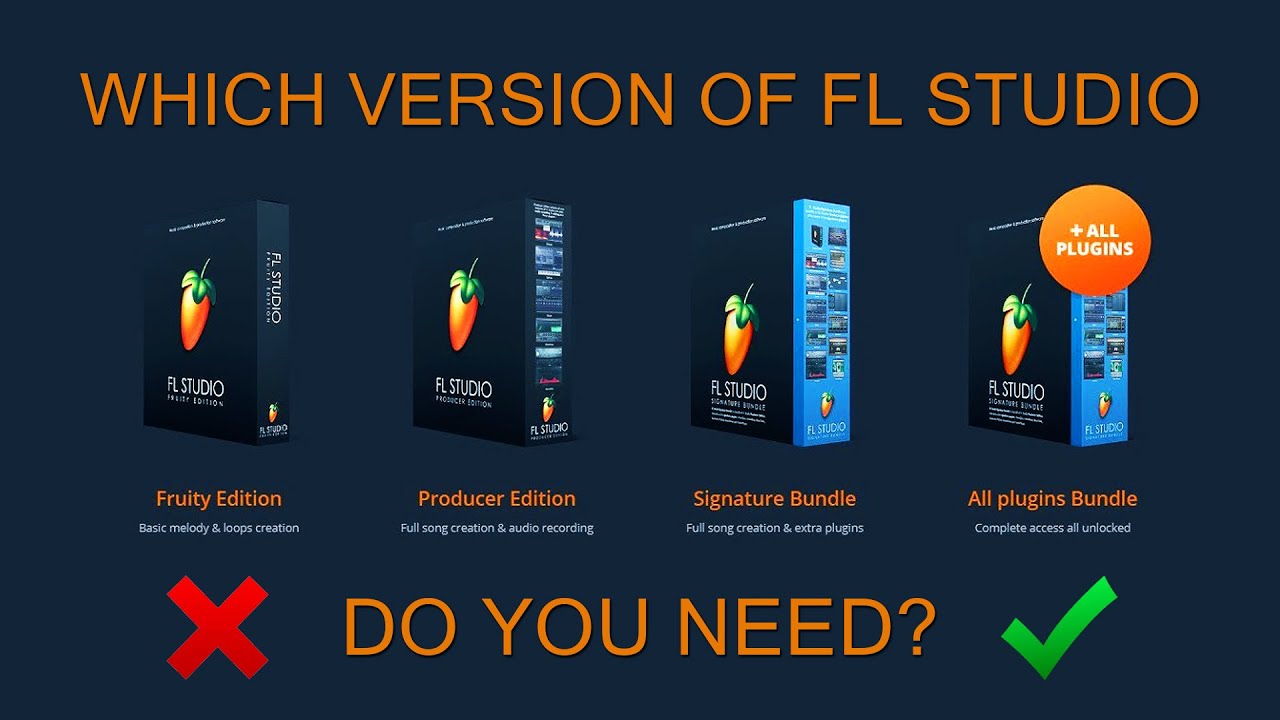
Switching to another FL Studio edition can be a good solution. FL Studio Producer Edition and Signature Bundle support vocal recording. These editions offer more features. They also come with a higher price tag. But the investment is worth it if you need extensive recording capabilities.
Third-party Software
Using third-party software is another effective solution. Many free or affordable recording tools are available. Audacity is a popular choice for vocal recording. It is free, open-source, and easy to use. You can record your vocals in Audacity and then import them into FL Studio Fruity Edition.
Reaper is another great option. It is affordable and offers a full-featured trial version. You can record high-quality vocals and then export them to FL Studio. This method allows you to stay within your budget while still achieving professional results.
Credit: www.youtube.com
Frequently Asked Questions
Can You Record Vocals On FL Studio Fruity Edition?
Yes, you can record vocals on FL Studio Fruity Edition. However, it has limited recording features. For more advanced recording options, consider upgrading to Producer Edition.
What Are The Limitations Of Fruity Edition?
Fruity Edition lacks audio recording and automation features. It’s designed mainly for creating beats and melodies. For full recording capabilities, upgrade to Producer Edition.
How To Set Up A Microphone In Fruity Edition?
To set up a microphone, connect it to your audio interface. Then, configure the input settings in FL Studio’s audio settings.
Can You Use VST Plugins In Fruity Edition?
Yes, Fruity Edition supports VST plugins. You can use third-party plugins to enhance your projects. Ensure they are compatible with FL Studio.
Conclusion
Recording vocals on FL Studio Fruity Edition has its limitations. You can’t directly record vocals. But, you can import vocal tracks. This allows for some flexibility. You can still create great music. Many users find workarounds helpful. Explore other FL Studio editions for full features.

Always choose the right tool for your needs. Keep experimenting and improving your skills. Happy music making!
As an Amazon Associate, Cleanestor earns from qualifying purchases at no additional cost to you.